
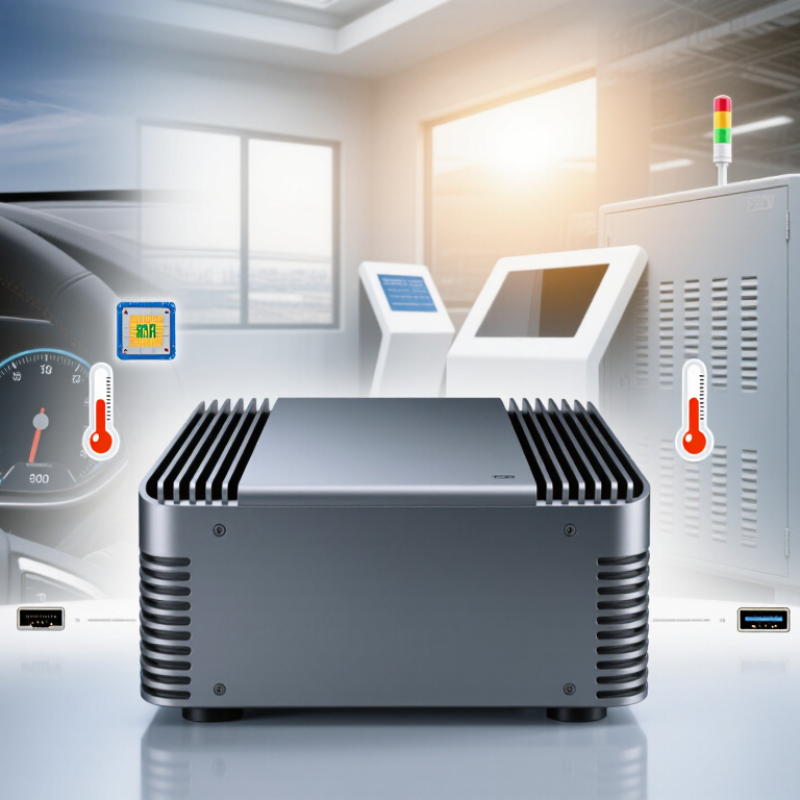
Choosing the best Fanless Pc starts with the place it must work. A kiosk beside a sunny window, a machine cabinet near a production line, and a vehicle dashboard all create different demands. Without an internal fan, the computer avoids one moving part that can collect dust or fail. But fanless does not mean heat-free. The chassis must move heat away from the processor, especially in a sealed enclosure. Small details matter.
The market is expanding. IDC’s Worldwide Edge Spending Guide forecast global edge-computing spending of $232 billion in 2024, a 15.4% increase over 2023. This growth makes compact computing more relevant, but it does not make every system suitable for every job. Check the processor’s sustained performance, operating-temperature range, ports, mounting options, and support period. Then compare these details with the actual workload, not just a supplier’s headline specifications. Heat still matters.
A quiet, sealed design may suit dusty work areas, yet limited airflow can restrict performance under continuous heavy loads. Power use and future upgrades also deserve attention. A lower purchase price can become a poor bargain if the unit lacks the connections or service life your site needs. There is no universal best choice. A tidy spec sheet can hide a real compromise, so verify critical claims against the manufacturer’s documentation and test conditions before deciding.
Start with the task, not the size of the computer.
A fanless PC handling spreadsheets or signage has different needs from one processing camera feeds or running control software. Check the processor load, memory, storage, and ports your applications actually require. Then consider where the system will sit. A sealed cabinet, a dusty workshop, and a cool office create very different thermal conditions. Fanless designs rely on their cases to release heat, so restricted airflow or sustained heavy workloads can cause performance to drop.
Tips: Measure the mounting space and check ambient temperatures. Leave room around the case. Count required USB, display, and network connections before buying.
Think about vibration, dust, moisture, and access for maintenance, too. A unit tucked behind a monitor may be hard to reach when a cable fails. In a warm enclosure, check the manufacturer’s operating-temperature range and allow for heat from nearby equipment. Quiet does not automatically mean suitable. I’ve seen compact systems chosen for convenience, then placed where they could not shed heat well. That is an easy mistake, and specifications alone may not reveal the whole setup.
Choose the processor for the heaviest task the PC must run, not its average workload. Continuous video decoding, local analytics, and several simultaneous services can keep a fanless system under sustained load. Check thermal limits and power use alongside benchmark results; a fast chip may slow down when its small enclosure heats up. IDC’s 2024 Worldwide Edge Spending Guide projected global edge-computing spending would reach $232 billion in 2024, a 15.4% rise from 2023. That growth points to more computing near devices, but it does not prescribe one processor or configuration. Match the chip to your actual software. Leave breathing room.
Set memory by counting the applications and data open at the same time. A dashboard, browser, and local database can compete for RAM, even when each seems modest alone. Review real workload usage during a busy shift, then allow extra capacity for updates and growth. Small tests deceive. For storage, estimate operating-system needs, application files, logs, and the amount of data kept locally. Choose solid-state storage for responsive access, and check endurance ratings if the PC writes logs continuously. Capacity is easy to overestimate; usable space shrinks after updates and backups. I still find it tempting to buy the smallest drive, and that can be a poor trade-off. Keep a margin for temporary files and future workload changes.
| Typical Use | Processor Guidance | Memory | Storage | Fanless Design Considerations |
|---|---|---|---|---|
| Basic control, signage, or kiosk | Low-power processor with 2–4 cores; suitable for a small number of simple applications | 8 GB | 128–256 GB SSD | Check display outputs, port count, and the rated operating-temperature range. |
| Office tasks and web-based applications | Low-power processor with 4–6 cores for everyday multitasking | 16 GB | 256–512 GB SSD | Confirm that the enclosure can dissipate heat during sustained workloads, not just brief tasks. |
| Light industrial monitoring or data collection | Processor with 4–8 cores, selected for the number of services and data-processing tasks | 16–32 GB | 256–512 GB SSD; consider a larger drive if local logs are retained | Check required serial, Ethernet, and digital I/O connections, plus vibration and temperature specifications. |
| Virtual machines or container workloads | Higher-performance low-power processor with 8 or more cores, subject to the system's cooling limits | 32–64 GB | 512 GB–1 TB SSD | Verify sustained thermal performance and memory capacity; passive cooling may limit performance under continuous load. |
| Local image processing or multiple displays | Processor with capable integrated graphics; select a dedicated accelerator only if the workload requires it | 16–32 GB | 512 GB–1 TB SSD | Check supported display resolution and count, and ensure the thermal design supports graphics workloads. |
| Remote or unattended deployment | Choose enough processing capacity for the application, with headroom for background services | 16 GB or more, depending on the software | SSD sized for the operating system, applications, and expected data retention | Prioritize specified operating temperature, power-loss behavior, remote management, and long-term component availability. |
Selection note: These are starting-point recommendations, not fixed requirements. Check the operating system and application requirements, maximum supported memory, storage interface, and the PC's published thermal limits before purchase.
A fanless PC can look capable on paper, yet the ports decide how easily it fits your workspace. Count the USB ports you need for a keyboard, storage drive, and any specialist equipment. Check whether they support the data speeds your devices require; identical-looking sockets may not perform alike. Small details matter. Also inspect the power input, audio connection, and any serial or Ethernet ports needed for existing equipment. A port list can still mislead if several sockets sit too close together for bulky plugs. Leave room for awkward cables.
Networking deserves the same careful check. Wired Ethernet is useful for steady transfers or a fixed workstation, while Wi-Fi can simplify placement. Confirm the wireless standard and antenna arrangement, especially if the computer will sit inside a cabinet. I would verify these details against the room, not just the product sheet. Display compatibility is easy to overlook. Check the number and type of video outputs, supported resolution, and refresh rate for each screen. Then compare them with the monitor’s inputs and cable length. A small text label may look fine in a shop, but become tiring on a high-resolution display. When possible, test the exact monitor setup; specifications do not always reveal every practical limitation.
A fanless PC stays quiet by moving heat through its case, not by pushing air with a fan. Look for a substantial metal heatsink and clear guidance on operating temperatures. A compact case may fit neatly behind a monitor, but it can trap heat inside a cabinet. Leave room around the chassis, especially near its cooling fins. Quiet matters. So does sustained performance: a system that slows down under a long workload may not suit your needs.
Tips: Measure the space, including cable clearance. Check the unit’s rated power use at idle and under load, not just its maximum wattage. Small differences add up if the PC runs all day.
Match the size and power draw to the job. Digital signage or basic office tasks may need less processing power than video editing or continuous data work. Compare the ports you actually use, too; adapters can clutter a small setup. I tend to focus on specifications and then forget the physical layout, which is an easy mistake. Check where the power cable bends and whether the PC can be mounted securely. A quiet, low-power model is useful only if it stays cool in its real location.
A fanless PC removes a moving part, but that alone does not prove reliability. Check its operating-temperature range, thermal test conditions, and performance under your actual workload. A compact metal chassis may shed heat well in a cool cabinet, yet struggle beside a warm machine or under continuous processing. Dust still gathers on surfaces and connectors. Ask how the unit is tested, how long critical components are supported, and whether replacement parts are available. Small details matter.
Support can shape the real cost more than the purchase price. Request clear warranty terms, repair turnaround estimates, and access to technical staff who understand your operating environment.
Uptime Institute’s 2024 Annual Outage Analysis found that 54% of respondents said their most recent significant outage cost more than $100,000; 16% put it above $1 million. Those figures cover outages broadly, not fanless PCs specifically, but they show why recovery planning deserves a place in the budget.
Calculate total cost across purchase, energy, maintenance, downtime, and replacement. I may be giving downtime too much weight for a lightly used kiosk, but ignoring it feels worse. Compare realistic scenarios, not just the lowest quote.
